 DaVinciDreams
Editeur Video IA avec Timeline
Le seul editeur video IA avec une timeline multipiste professionnelle. Superposez video, images, audio, texte et effets — puis arrangez, rognez et composez avec un controle a l'image pres.
 Essayez l'editeur timeline — gratuit
Éditeur de timeline multi-pistes
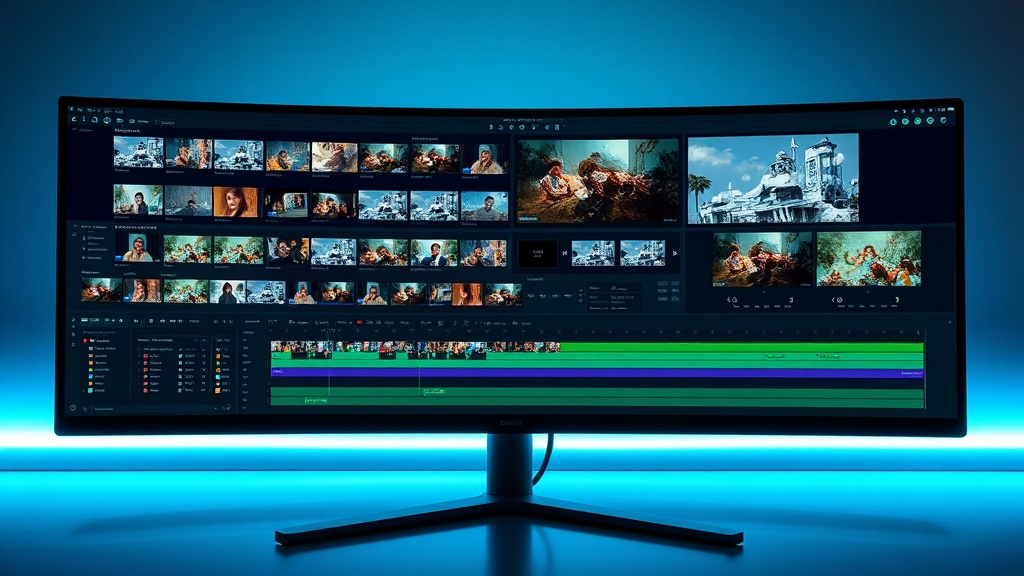
La plupart des outils vidéo IA vous donnent un seul clip de sortie sans aucune capacité de montage. DaVinciDreams est différent — il fournit un éditeur de timeline multi-pistes complet qui vous permet de travailler avec du contenu généré par l'IA de la même manière que dans Premiere Pro ou DaVinci Resolve. Empilez un nombre illimité de couches vidéo pour les effets de compositing. Utilisez des pistes audio séparées pour le dialogue, la musique et les effets sonores avec des contrôles de volume indépendants. Ajoutez des couches de texte pour les titres, sous-titres et bandeaux. Chaque élément sur la timeline prend en charge les points de découpe, les opérations de division et le réordonnancement par glisser-déposer. La timeline s'adapte des montages simples d'une seule scène aux films complexes multi-scènes avec des dizaines de pistes. Zoomez pour une précision à l'image ou dézoomez pour une vue d'ensemble du projet. Ce n'est pas une timeline jouet — c'est une interface de montage professionnelle qui travaille avec du contenu généré par l'IA dans votre navigateur.
Compositing et contrôle des couches
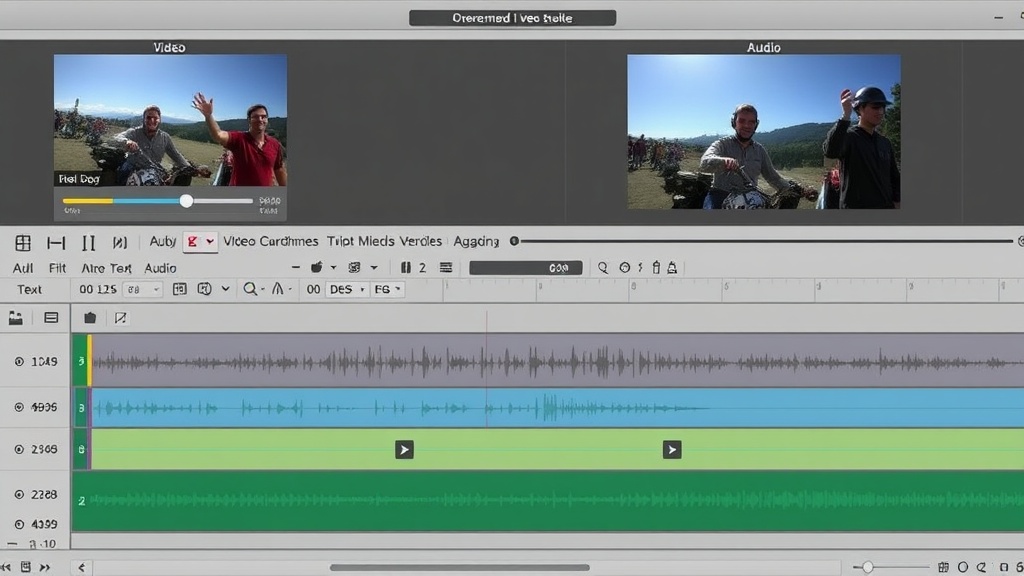
La production vidéo professionnelle repose sur le compositing — la superposition de multiples éléments visuels pour créer l'image finale. DaVinciDreams apporte cette capacité au navigateur. Chaque élément sur la timeline dispose de contrôles individuels d'opacité, de volume, de découpe entrée/sortie et de position de couche. Superposez une vidéo de fond avec un personnage en premier plan, ajoutez un carton titre avec une transparence ajustable et mixez des effets sonores ambiants sous votre piste de dialogue. La prévisualisation en temps réel — propulsée par Remotion — effectue le rendu de l'intégralité de votre composition en direct pendant que vous apportez des modifications. Ajustez l'opacité d'une couche vidéo de 100 % à 50 % et voyez les couches se fondre instantanément. Modifiez la courbe de volume d'une piste audio et entendez le mix se mettre à jour en temps réel. Ajoutez des effets de transition — fondu enchaîné, dissolve, volet, glissement — entre les clips et prévisualisez-les sans attendre de passe de rendu. Cette boucle de retour immédiate est ce qui distingue un véritable outil de montage d'un générateur par lots.
Comment ça marche
Générez les médias
Utilisez le générateur IA pour créer des clips vidéo, des images, de la voix off, de la musique et des effets sonores. Tous les médias générés apparaissent dans votre projet
Disposez sur la timeline
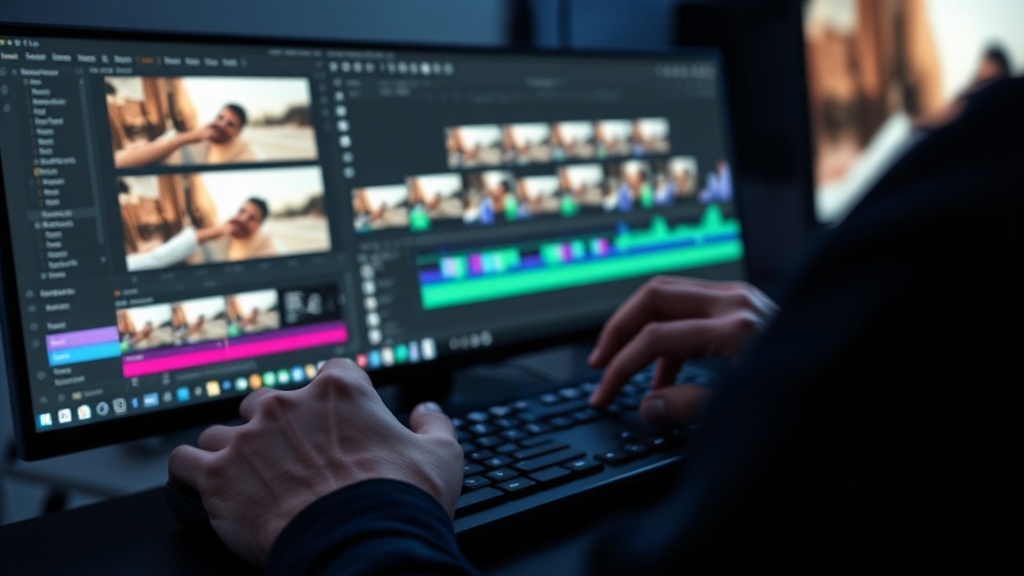
Glissez les clips sur la timeline multi-pistes. Empilez des couches vidéo pour le compositing, ajoutez des pistes audio séparées et arrangez les incrustations de texte.
Peaufinez et exportez
Ajustez l'opacité, le volume, les points de découpe et les transitions avec une précision à l'image. Prévisualisez en temps réel, puis exportez en HD ou 4K.
Fonctionnalités clés
Pour qui ?
Monteurs professionnels
Utilisez des outils de montage familiers basés sur une timeline avec du contenu généré par l'IA. Compositing complet, audio multi-pistes et contrôle à l'image près.
YouTubeurs
Montez des vidéos générées par l'IA avec la même précision que des séquences filmées. Ajoutez des intros, outros, nappes musicales et incrustations de texte sur la timeline.
Maisons de production
Accélérez la production vidéo avec la génération IA tout en maintenant les standards de montage professionnel attendus par vos clients.
FAQ
Pourquoi une timeline est-elle importante dans un editeur video IA ?
La plupart des outils video IA ne generent que des clips isoles. Une timeline permet d'arranger plusieurs clips, superposer des pistes audio, ajouter des transitions et affiner le timing — essentiel pour creer de vrais films, pas seulement des clips individuels.
Combien de pistes puis-je utiliser ?
Il n'y a pas de limite fixe. DaVinciDreams supporte un nombre illimite de pistes video, image, audio et texte. Chaque element a des controles independants d'opacite, volume, position et timing sur la timeline.
Puis-je editer la timeline apres que l'IA a genere mon film ?
Oui. Apres la generation IA de votre film, chaque element apparait comme un clip editable sur la timeline. Deplacez, rognez, remplacez ou regenerez n'importe quel element. La timeline est votre espace de montage professionnel.
Puis-je exporter ma timeline vers un logiciel de montage professionnel ?
Oui. DaVinciDreams exporte des fichiers FCPXML compatibles avec DaVinci Resolve, Final Cut Pro et Adobe Premiere. Votre timeline multipiste complète — clips, transitions et audio — est transférée vers les NLE professionnels.
Quels effets de transition sont disponibles ?
La timeline prend en charge 7 types de transitions : fondu enchaîné, dissolution, balayage, glissement, fondu au noir, fondu depuis le noir et coupe. Chaque transition est prévisualisée en temps réel. Appliquez des transitions entre deux clips sur la même piste.