DDDaVinciDreams

AI Video Creator

Create professional videos entirely with AI. Describe your vision, pick a style, and let 50+ AI models generate your video, images, voiceover, and soundtrack.

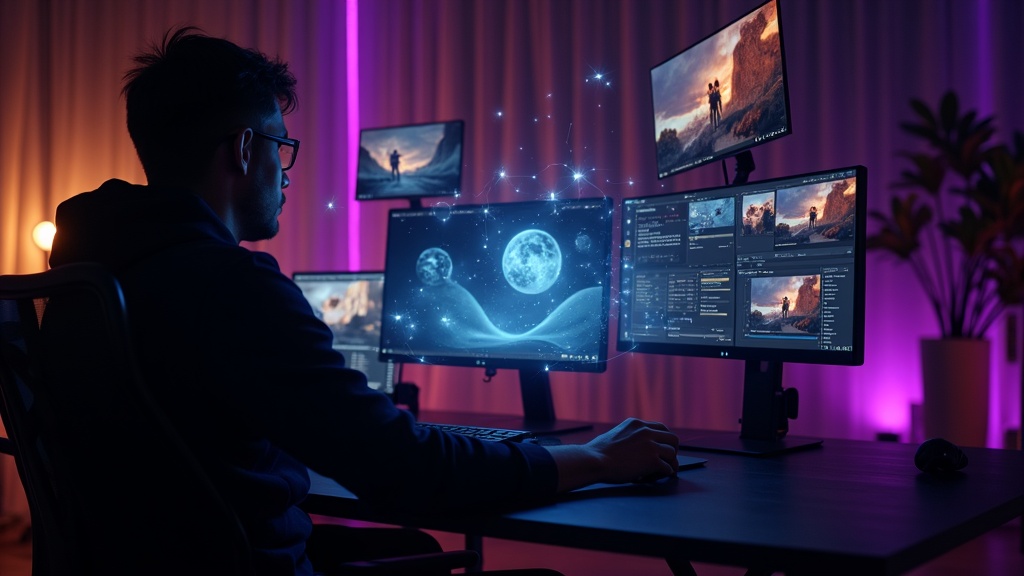
Creative artist using AI to generate video content on multiple floating screensCreate your first video — free

From Idea to Finished Video in Minutes

Creating video content traditionally requires cameras, lighting, actors, locations, and hours of post-production work. DaVinciDreams eliminates all of that. You start with nothing more than a text description — a sentence, a paragraph, or a full script — and the platform generates everything you need. The AI script writer structures your idea into scenes with camera directions and dialogue. Then specialized AI models create video clips, still images, voiceover narration, background music, and sound effects for every scene. The entire process takes minutes, not days. Your creative vision goes from concept to watchable video faster than ever before possible.

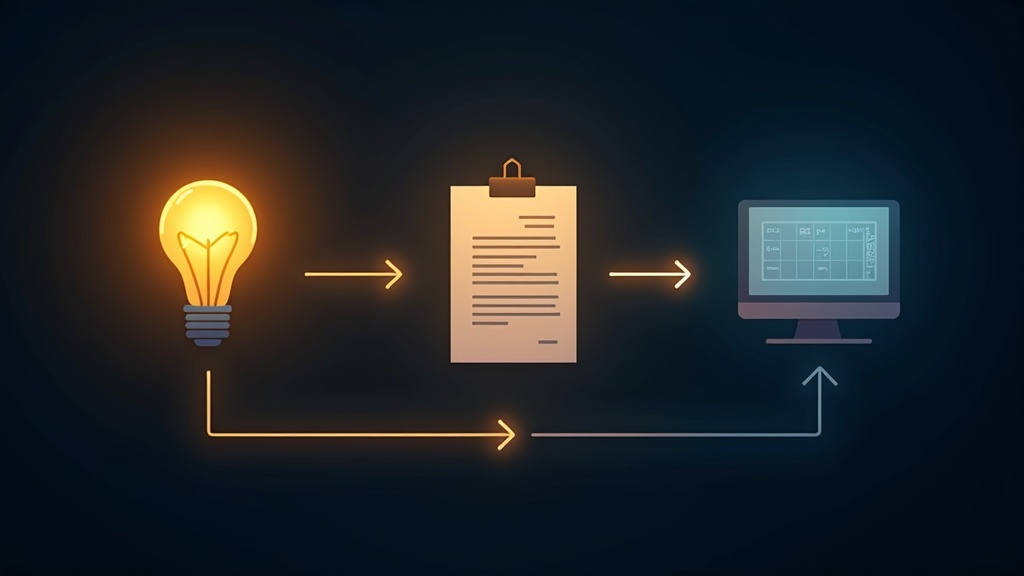
Three-step AI video creation workflow from idea to script to finished video

12 Visual Styles for Every Creative Vision

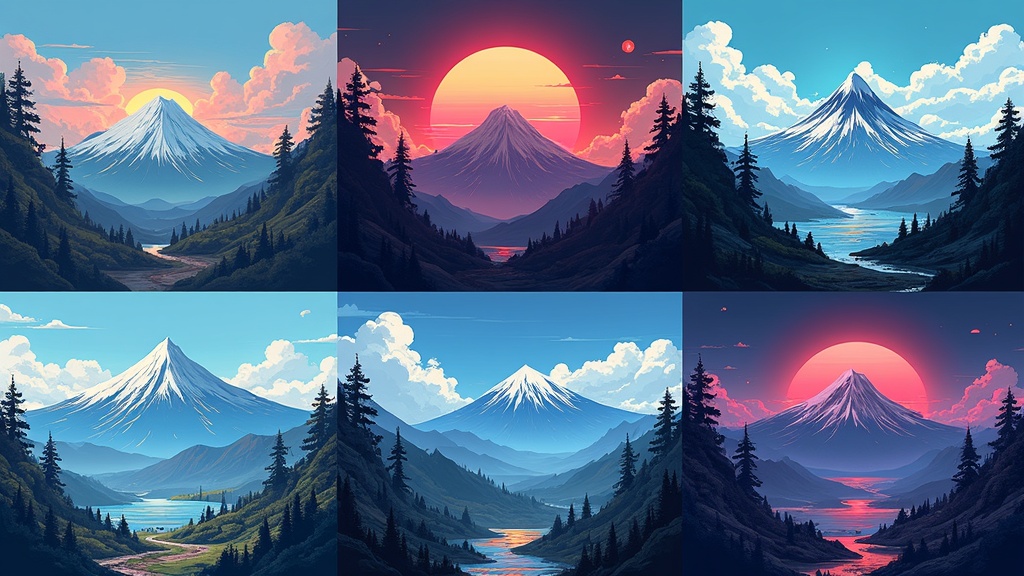
Every project has a unique aesthetic. DaVinciDreams offers 12 carefully designed style presets that transform your content into distinct visual experiences. Choose cinematic for Hollywood-quality drama with shallow depth of field. Select anime for bold, colorful Japanese animation. Pick noir for moody black-and-white shadows. Try documentary for naturalistic handheld footage. Each style preset is embedded into every generation prompt, ensuring visual consistency across all clips in your project. You can also mix styles within a single project — use a different preset for a dream sequence or flashback to create deliberate contrast that serves your narrative.

Grid showing six different AI video styles: cinematic, anime, noir, documentary, sci-fi, and watercolor

How It Works

1

Write Your Concept

Describe your video idea in a sentence or paragraph. Upload reference images for visual consistency.

2

Choose Style and Models

Pick from 12 visual styles and select AI models for video, image, voice, and music generation.

3

Generate and Refine

AI creates all media assets. Edit in the timeline, tweak prompts, regenerate clips, and export.

Key Features

Text-to-video generation in seconds
12 visual styles: cinematic, anime, noir & more
AI voiceover with ElevenLabs & OpenAI
AI music & sound effects generation
Automatic script writing from one-line ideas
Export in HD and 4K

Who It's For

Content Creators

Produce YouTube videos, social media shorts, and channel content without expensive production equipment.

Small Businesses

Create product videos, promotional content, and brand stories with professional quality on any budget.

Storytellers

Bring your stories to life as animated shorts, visual novels, or mini-films with AI-generated visuals.

FAQ

How does AI video creation work?

You describe your video idea in text. Our AI script writer expands it into a full script with scenes and shots. Then AI models generate video clips, images, voiceover, music, and sound effects for each scene automatically.

Do I need filming experience?

No! DaVinciDreams is designed for creators without filming equipment or experience. Simply describe what you want and AI handles the creation. You can fine-tune results in the timeline editor.

What video styles can I create?

DaVinciDreams offers 12 visual styles including realistic, cinematic, anime, Disney/cartoon, comic, noir, documentary, sci-fi, horror, watercolor, pixel art, and classic animation.

How much does AI video creation cost?

Costs depend on the AI model you choose. Video clips range from $0.03 (Hunyuan Fast) to $0.40 (Sora 2) per clip. Images start at $0.015 and audio at $0.005 per second. The free tier includes 50 image and audio generations monthly.

What resolution can I export in?

DaVinciDreams supports HD (1080p) and 4K export. Free tier exports include a small watermark; paid plans export without watermark. You can also export as FCPXML for professional editing in DaVinci Resolve or Final Cut Pro.